

AI Face Authentication
AI Face Authentication at every punch
Time Sense checks where a punch is made before it checks who is making it: location first, then a face capture with a liveness challenge, then AI face matching on your own Time Sense server. Your organisation turns it on and decides what a failed check does.
How a face-checked punch works
Five steps, always in this order. Scroll to follow one punch through them.
- 1
Location verified
The phone or browser fixes the location and checks it against your sites before anything else.
- 2
Face captured
With the location confirmed, the camera captures the face of the person punching.
- 3
Liveness checked
A short live challenge, such as a blink or a head turn, is there to stop a printed photo or a screen.
- 4
Face matched
AI face matching on your Time Sense server compares the capture with the enrolled face.
- 5
Punch recorded
A pass records the punch with its scores; a failed check is flagged for review or refused, as your policy sets.
Liveness that asks for a live response
Every channel runs an active challenge at the camera, and the server holds the result to the liveness threshold your organisation sets.
- Mobile app: centre the face and hold still, blink, turn the head in a random direction, then look back.
- Web check-in: a short liveness challenge runs in the browser camera before the photo is sent.
- Face kiosk: blink, head-turn and smile prompts on the shared tablet.
- A liveness result below your threshold fails the check, whatever the face match says.
AI face matching on your own server
The face matching and liveness models run inside Time Sense, in our cloud or on your premises, with no third-party biometric service.
- The capture is compared with the employee's enrolled face, and a score below your match threshold is a mismatch.
- The mobile app and web check-in use the same server face engine.
- Match and liveness scores are kept with each mobile punch, so an authorised reviewer sees why it passed or failed.
Your policy decides what a failed check does
Face checks are off until your organisation turns them on. From there, every setting is yours.
- Photo at punch: off, optional or required.
- Face match: on or off, with the liveness and match thresholds you choose.
- A failed check is flagged for HR to decide in Face Reviews, or refused at the punch.
- If the face engine is unavailable, punches are flagged under Flag and refused under Reject, so the rule you chose still holds.
One order across phone and browser
The mobile app and web check-in check location first and the face second. The face kiosk stands at a fixed site, so it starts at the face.
- Mobile app: choose the project, confirm the location, then the face step, then the punch is sent.
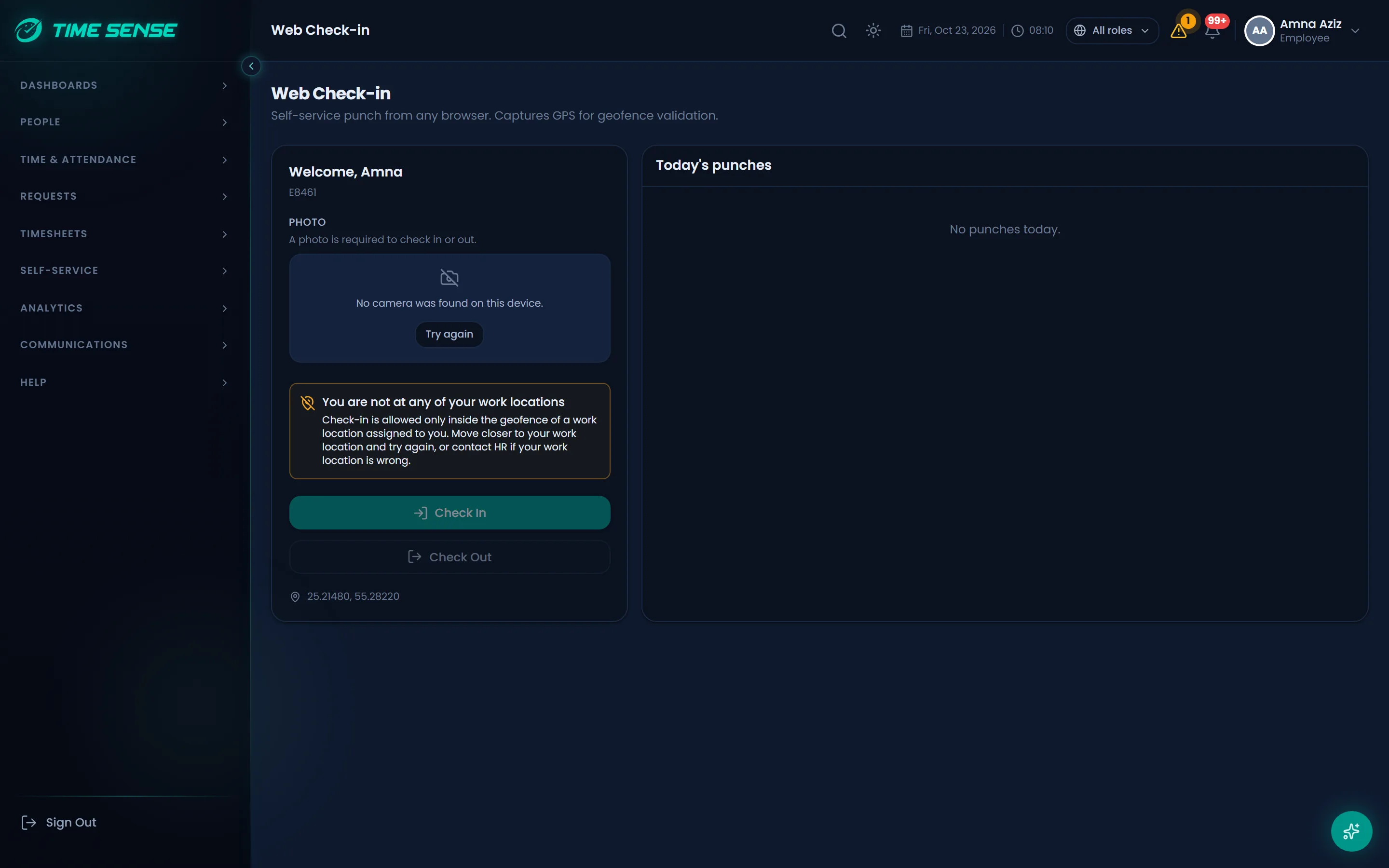
- Web check-in: the browser location must place the employee at a site in range, then the face photo and liveness run when face match is on.
- Face kiosk: a shared tablet at the site runs blink, head-turn and smile prompts; it has no location step.
Consent first, biometrics kept to the check
Face data is used only with consent, and the checks run where your Time Sense runs.
- Each acceptance and withdrawal of biometric consent is recorded, and withdrawing it removes the face from every face kiosk.
- The phone keeps its face capture in memory only, and kiosk camera frames are never stored or logged.
- No outside biometric service sees a face: matching runs on your Time Sense server.
See Time Sense run on your own rules
Book a demo and we will walk through your shifts, devices and approvals, in English or Arabic.